
Managing social media accounts can quickly become overwhelming, especially if you are publishing content across multiple platforms. Whether you run a blog, a small business, or a personal brand, consistently posting content on platforms like Twitter, LinkedIn, Facebook, and others takes time and discipline.
Many creators start with manual posting. They open each platform, write the post, paste the link, upload an image, and repeat the process every day.
This approach works at the beginning, but it does not scale.
Automation is the solution.
In this guide, you will learn how to build a simple but powerful system that automatically publishes social media posts using n8n and Google Sheets. This system allows you to plan your content in a spreadsheet and let automation handle the publishing process.
The result is a workflow that saves time, reduces mistakes, and keeps your content consistent.

Why Automate Social Media Posting?
Before building the system, it is important to understand why automation matters.
Manual posting has several limitations:
• It requires constant attention
• It increases the risk of forgetting posts
• It wastes time repeating the same actions
• It becomes difficult when managing multiple platforms
Automation solves these problems.
With automation, you can:
• Schedule posts in advance
• Publish to multiple platforms automatically
• Keep your content calendar organized
• Reduce repetitive manual work
Instead of logging into social platforms every day, you simply update a spreadsheet.
The system handles everything else.
Overview of the Automation System
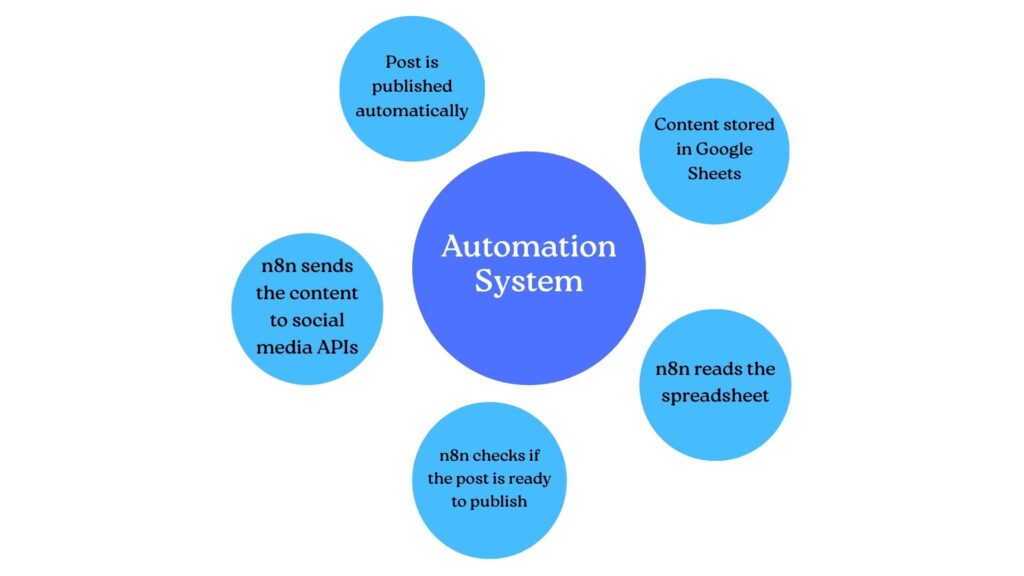
The system we are building follows a simple workflow:
Content stored in Google Sheets
↓
n8n reads the spreadsheet
↓
n8n checks if the post is ready to publish
↓
n8n sends the content to social media APIs
↓
Post is published automatically
This architecture is simple but powerful.
It allows you to manage content using a familiar tool (Google Sheets) while letting n8n handle the automation logic.
Tools You Will Need
To build this automation system, you need three main components.
1. n8n
n8n is a workflow automation platform that allows you to connect different services and automate tasks using a visual workflow builder.
You can run n8n in several ways:
• n8n Cloud
• Self-hosted VPS
• Docker container
• Local development environment
Many developers prefer self-hosting because it offers more control and lower long-term costs.
2. Google Sheets
Google Sheets will act as your content management database.
Instead of storing posts inside your automation tool, you manage everything inside a spreadsheet.
This allows you to easily edit, schedule, and track posts.
3. Social Media APIs
You will connect your automation to platforms such as:
• Twitter / X
• LinkedIn
• Facebook
• Telegram
• Discord
• Mastodon
Each platform requires API authentication.
Some platforms provide native nodes inside n8n, while others can be accessed through HTTP requests.
Step 1: Create Your Content Sheet
The first step is designing the spreadsheet that will store your posts.
Create a new Google Sheet and define columns like this:
| ID | Post Text | Image URL | Platform | Publish Date | Status |
|---|
Explanation of each column:
ID
Unique identifier for the post.
Post Text
The content you want to publish.
Image URL
Optional image for the post.
Platform
Where the content should be published.
Publish Date
Scheduled publishing time.
Status
Controls automation behavior.
Possible status values:
• pending
• published
• scheduled
This spreadsheet becomes your content calendar.
Step 2: Create the n8n Workflow
Open n8n and create a new workflow.
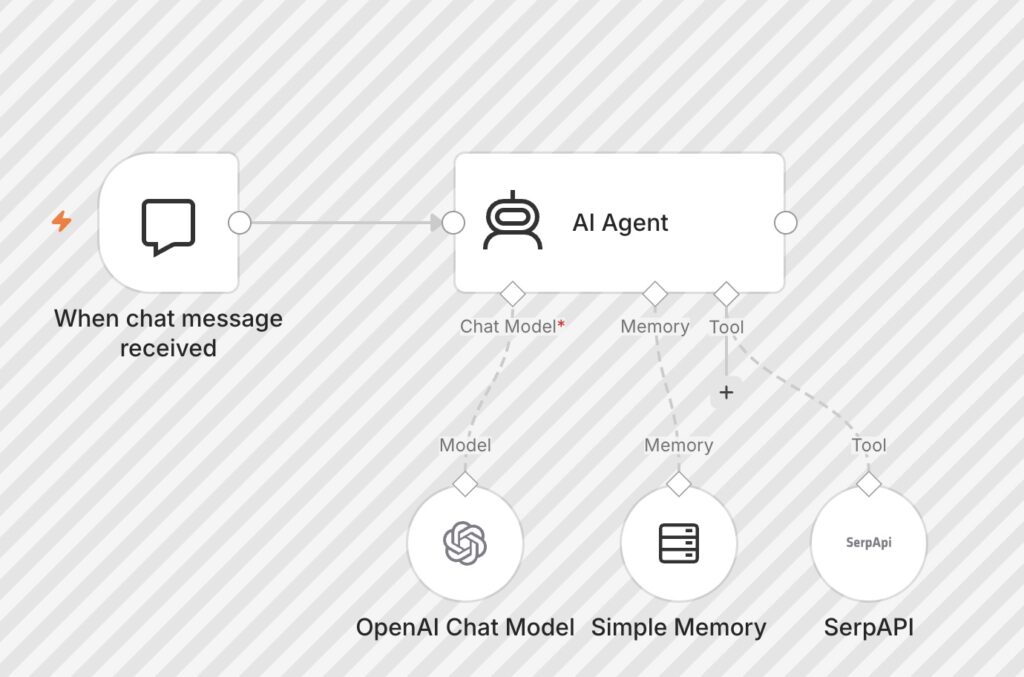
The automation will run on a schedule and check Google Sheets for posts that should be published.
Add the first node:
Schedule Trigger
This node runs the workflow automatically.
Example settings:
Run every 30 minutes.
This means the system checks the spreadsheet twice per hour for new posts.
Step 3: Read Data From Google Sheets
Next, add the Google Sheets node.
Configure it to:
• Connect to your Google account
• Select the spreadsheet
• Read rows from the sheet
This node retrieves the content stored in your spreadsheet.
Each row becomes a data object inside the workflow.
Step 4: Filter Posts That Should Be Published
Not every row should be published immediately.
We must check two conditions:
• Status = pending
• Publish Date ≤ Current Time
To do this, add an IF Node.
The IF node filters the data.
If the conditions are met, the workflow continues.
Otherwise, the post is ignored until the next run.
This ensures that only scheduled posts are published.
Step 5: Format the Post Content
Different platforms have different requirements.
For example:
Twitter has character limits.
LinkedIn supports longer text.
Some platforms require specific formatting.
Add a Set Node or Function Node to format the content.
Example structure:
Post Text
Image URL
Platform
Timestamp
This step ensures that the data is clean before sending it to APIs.
Step 6: Send the Post to Social Media
Now comes the publishing step.
Depending on the platform, you can use different nodes.
Example: Twitter/X
Use the HTTP Request Node or a dedicated integration.
Send:
POST request to Twitter API with:
• text
• image
• authentication token
Example: LinkedIn
LinkedIn requires OAuth authentication and an API request containing:
• message text
• media attachment
• author ID
Example: Telegram or Discord
These platforms are simpler.
You can send a message using a bot API.
For example:
POST request with message content.
Step 7: Update the Spreadsheet
Once the post is published successfully, update the spreadsheet.
Add another Google Sheets node.
Change the status from:
pending → published
This prevents the automation from reposting the same content again.
Your spreadsheet now becomes a historical log of published posts.
Step 8: Error Handling
Automation systems must handle errors.
Possible problems include:
• API failures
• expired authentication tokens
• network errors
• formatting problems
You can add:
Error workflow branches.
For example:
If publishing fails → send notification to email or Slack.
This helps you detect issues quickly.
Step 9: Logging and Monitoring
For long-term reliability, it is useful to track automation activity.
You can log:
• published posts
• failed posts
• execution times
This can be stored in:
• Google Sheets
• Airtable
• Database
• Notion
Monitoring helps you improve your automation system over time.
Example Automation Workflow
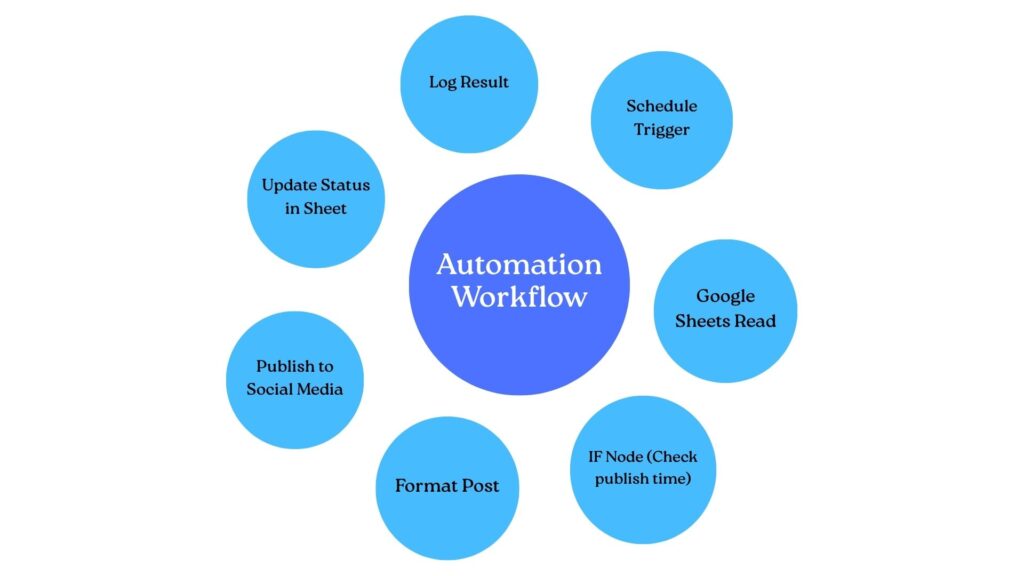
A simplified workflow might look like this:
Schedule Trigger
↓
Google Sheets Read
↓
IF Node (Check publish time)
↓
Format Post
↓
Publish to Social Media
↓
Update Status in Sheet
↓
Log Result
Advantages of This System
This automation setup offers several benefits.
Centralized Content Management
All posts are stored in one spreadsheet.
You can easily edit or reorder posts.
Easy Scheduling
You simply change the publish date in Google Sheets.
The automation system handles the rest.
Multi-Platform Publishing
You can expand the system to publish to multiple platforms simultaneously.
Time Efficiency
Instead of posting manually every day, you prepare content once and let automation manage publishing.
Real-World Use Cases
This system is useful for many situations.
Examples include:
Blog promotion
Marketing campaigns
Product announcements
Content repurposing
Social media growth strategies
For example, a blog can automatically share new articles on multiple platforms as soon as they are published.
How I Use This System: Boosting My ASO Strategy “I don’t just use this workflow for random updates—I use it as a strategic tool to drive traffic to my mobile games and blog posts. For instance, when I completed my store optimization for a game, I set up this automation to repurpose my ASO updates, keyword insights, and devlogs into a structured content calendar.Instead of manually spending hours posting on LinkedIn and Telegram groups every day, I spend one hour filling up my Google Sheet on the weekend. The system automatically pushes out the content, freeing up my time to focus on fixing bugs, optimizing app memory, and learning new native frameworks like Swift.”
Tips for Improving the Automation
Once the basic system works, you can improve it with additional features.
Examples:
• AI-generated captions
• automatic hashtag generation
• analytics tracking
• repost scheduling
• content categorization
Automation systems evolve over time.
Start simple and expand gradually.
Common Mistakes to Avoid
When building automation workflows, beginners often make these mistakes.
Publishing without testing.
Ignoring API rate limits.
Not handling errors.
Forgetting authentication refresh.
Poor spreadsheet structure.
Avoiding these problems early will save you many debugging hours.
Final Thoughts
Automating social media posting using n8n and Google Sheets is a powerful way to streamline your content workflow.
Instead of spending time manually publishing posts, you create a system that works automatically in the background.
This approach allows you to focus on creating better content rather than managing repetitive tasks.
Automation is not just about saving time.
It is about building systems that scale.
As your content strategy grows, this type of workflow becomes even more valuable.
With the flexibility of n8n and the simplicity of Google Sheets, you can create an automation system that grows alongside your projects.
Start with a basic workflow, test it carefully, and improve it step by step.
Over time, you will build a powerful automation infrastructure that supports your entire content strategy.
shkoder car rental
rent car nador