
Publishing a Unity game on Google Play is easier than most beginners think — but doing it correctly is what separates hobby projects from real, scalable mobile products.
After publishing multiple games, I’ve learned that the technical upload is only 20% of the process. The remaining 80% is preparation, optimization, testing, and avoiding small mistakes that can delay approval or reduce visibility.
In this complete step-by-step guide, I’ll walk you through the entire process — from Unity project setup to your game going live on Google Play.
Throughout the article, I’ll also show you where you should document your own experience and results.
Step 1: Prepare Your Unity Project Properly
Before even thinking about Google Play, your Unity project must be production-ready.
This includes:
- Stable gameplay (no crashes)
- Optimized performance
- Clean build settings
- Proper package configuration
1.1 Switch Platform to Android
In Unity:
File → Build Settings → Android → Switch Platform
Make sure you:
- Use IL2CPP
- Target ARM64 (required by Google Play)
- Enable App Bundle (AAB format)
Google Play no longer accepts APK for new apps — you must upload an Android App Bundle (.aab).
1.2 Configure Player Settings
Open:
Project Settings → Player
Configure:
- Company Name
- Product Name
- Package Name (com.yourcompany.gamename)
Your package name cannot change after publishing.
📌 Tip: Choose something professional and future-proof.
MY REAL EXPERIENCE
“In one of my early games, I chose the package name using the word ‘Separator’. I quickly regretted it. In terms of App Store Optimization (ASO) and user clarity, ‘Divider’ or ‘Splitter’ would have been much more intuitive and searchable. Since the package name is permanent, I’m stuck with ‘Separator’ in the URL and backend forever. Lesson learned: Research your keywords and ‘naming vibes’ thoroughly before you hit ‘Build’.”
1.3 Set Version Code and Version Name
Under:
Player → Other Settings
Set:
- Version Name (e.g., 1.0)
- Version Code (must increase every update)
Every update requires a higher version code.
Step 2: Prepare Game Assets for Google Play
Many developers underestimate this step.
Google Play requires:
- App icon (512×512)
- Feature graphic (1024×500)
- Screenshots
- App description
- Privacy policy
2.1 App Icon
Must be high quality and readable at small sizes.
Avoid:
- Small text
- Complex designs
- Low contrast
2.2 Feature Graphic
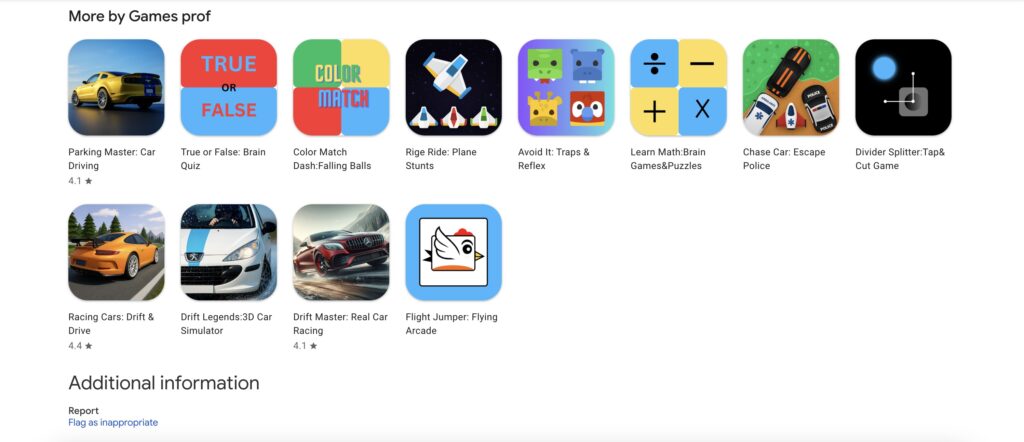
This is critical for conversions.
It appears at the top of your store listing.
Make it:
- Clear
- Simple
- Focused on one message
2.3 Screenshots
Use real gameplay screenshots.
Best practice:
- 6–8 screenshots
- Show progression
- Show UI
- Show unique features
Step 3: Create a Google Play Developer Account
You need a Google Play Developer account.
One-time fee: $25.
Register at:
play.google.com/console
Use a professional Gmail account.
Important:
This account is tied to your identity.
Treat it seriously.
MY REAL EXPERIENCE
“I created my developer account back in June 2020, and it wasn’t easy! At that time, I didn’t have a Mastercard to pay the registration fee. I had to reach out to a relative to help me make the purchase. I still remember the pure joy I felt when the account was finally activated. It felt like the first real step toward my professional career. Fast forward to today, I am still using that same account for all my releases. The lesson: Where there’s a will, there’s a way—don’t let payment hurdles stop you.”
Step 4: Create a New App in Play Console
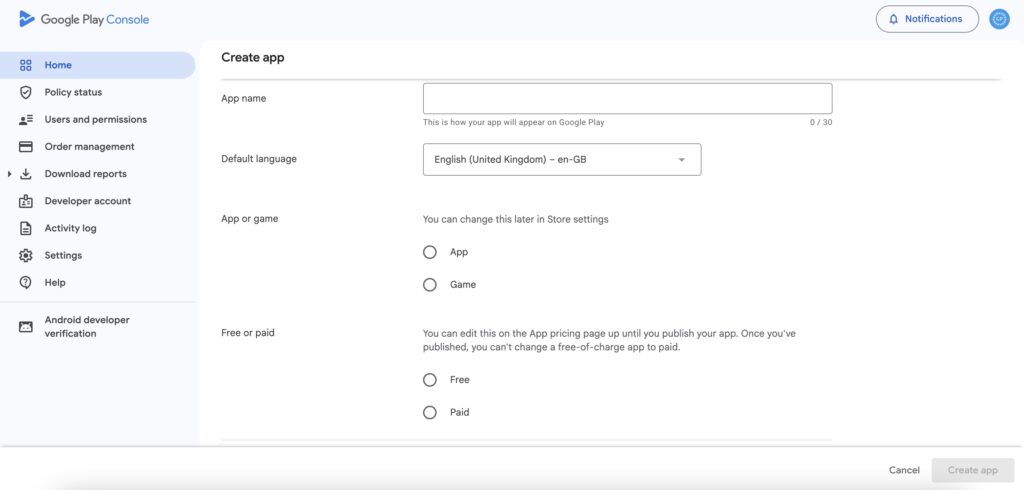
Inside Play Console:
Create App → Fill in:
- App name
- Default language
- App or game
- Free or paid
Choose “Free” unless you plan paid downloads.
Step 5: Upload Your Unity Build (.aab)
In Unity:
Build Settings → Build → Generate .aab
In Play Console:
Production → Create new release → Upload .aab
Google will automatically:
- Process your bundle
- Check compatibility
- Analyze warnings
Step 6: Complete Store Listing
This is where many games fail.
Store listing includes:
- Short description (80 characters)
- Full description (4000 characters max)
- Graphics
- Categorization
- Contact email
- Privacy policy
6.1 Writing a High-Converting Description
Don’t just describe gameplay.
Instead:
- Highlight problem solved
- Emphasize fun factor
- Use bullet points
- Add call-to-action
Structure example:
Hook paragraph
Features list
Call to download
Step 7: Content Rating & App Classification
Google requires:
- Content rating questionnaire
- Target audience declaration
- Ads declaration
- Data safety form
Be honest.
Incorrect data can lead to suspension.
Step 8: Add Privacy Policy
Even simple games require privacy policy.
Especially if:
- You use AdMob
- You collect analytics
- You use Firebase
You can:
- Host it on your website
- Use a policy generator
PRIVACY POLICY HER https://www.privacypolicygenerator.info/
Step 9: Internal Testing (Highly Recommended)
Before public release:
Create Internal Testing Track.
Upload build → Add test emails → Test on real devices.
This helps:
- Detect crashes
- Verify ads
- Check performance
MY REAL TESTING PROCESS
“I learned the importance of internal testing the hard way. I once finished an entire build, only to find out it didn’t even open on a real device! After fixing the crash, I realized that AdMob ads were not displaying correctly. I had to go back to the drawing board, tweak the settings, and rebuild the project multiple times. Pro Tip: Never trust the Unity Editor or Emulators alone. Always test on real Android hardware to catch crashes and SDK integration issues (like AdMob or Firebase) early.
Step 10: Submit for Review
After completing:
- Store listing
- Data safety
- App bundle upload
Click “Send for Review”.
Approval time:
Usually 1–3 days.
Sometimes longer for new accounts.
Common Reasons for Rejection
From real experience, common issues include:
- Missing privacy policy
- Incorrect data safety form
- Target audience mismatch
- Broken functionality
- Misleading metadata
MY REAL REJECTION EXPERIENCE
“I once made a rookie mistake: I used a title that was too similar to a famous game, thinking it would help with visibility. Google’s reviewers were faster than I expected—they rejected the app immediately for intellectual property violations. I had to pivot quickly, rename the game, and redesign the assets to be 100% original. After the changes, the game was finally accepted. My Advice: Don’t take shortcuts with trademarked names or famous brands. Build your own brand from scratch to avoid getting your account flagged or banned.”
Step 11: After Publishing — The Real Work Begins
Publishing is not the end.
It’s the beginning.
After launch:
- Monitor crash reports
- Track retention
- Optimize store listing
- Update regularly
Bonus: My Real Publishing Workflow
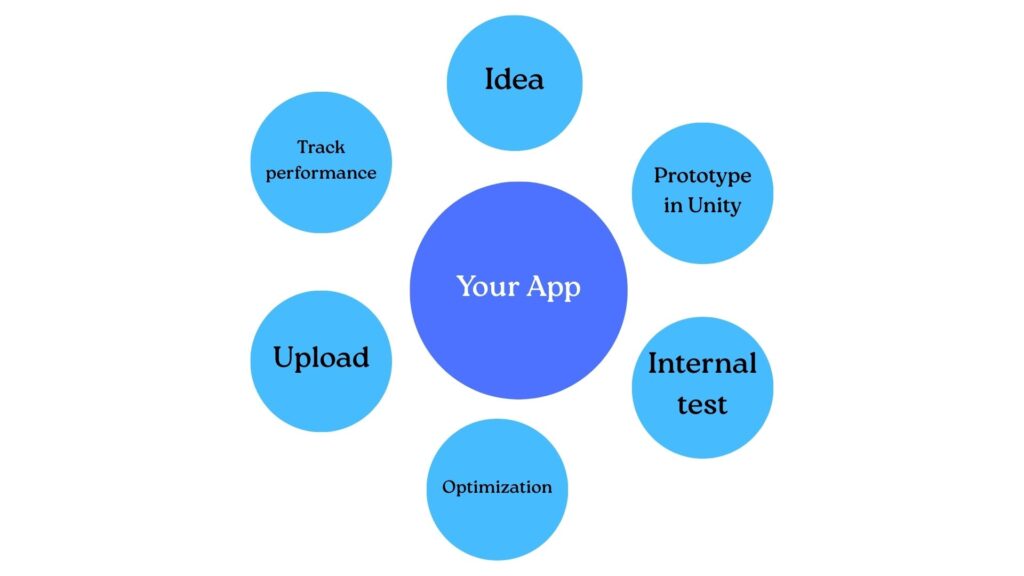
Here’s the simplified system I follow:
Idea
⬇
Prototype in Unity
⬇
Internal test
⬇
Optimization
⬇
Prepare store assets
⬇
Upload
⬇
Track performance
Optimization Tips That Matter
1️⃣ Keep Your Build Size Small
Smaller size = more installs.
2️⃣ Improve First Impression
Icon + title + screenshots = CTR.
3️⃣ Update Frequently
Google favors active apps.
Real Lessons From Publishing Multiple Games
Here’s what truly matters:
- Simple games can outperform complex ones
- Store listing optimization is critical
- Consistency beats perfection
- Data matters more than assumptions
MY MOST IMPORTANT LESSON: THE “GHOST TOWN” EFFECT
“I used to think that if I built a ‘masterpiece,’ players would magically find it. I spent months polishing my game, hit ‘Publish,’ and waited for the downloads to pour in. The result? Silence. > That’s when I learned my most painful but valuable lesson: Great games don’t sell themselves. I realized I was missing a huge piece of the puzzle: Marketing & ASO. > The Takeaway: Building the game is only 50% of the job. You must learn how to promote your work and understand your audience. Don’t let your hard work go unnoticed because you ignored the power of marketing.”
Final Thoughts
Publishing a Unity game on Google Play is not difficult.
But publishing it professionally — and consistently — is what builds long-term success.
If you treat each game as an experiment and a learning opportunity, you’ll improve with every release.
The key is:
Build → Test → Publish → Improve → Repeat.
If you’re planning to publish your first game, start small. Focus on finishing. Learn from each release.
And remember — your first upload will not be perfect.
But it will teach you more than months of planning.