
Automation has become one of the most powerful tools in modern digital workflows. Developers, entrepreneurs, and content creators are constantly searching for ways to reduce repetitive tasks and build systems that work automatically in the background.
Combining tools like Google Sheets, OpenAI, and n8n creates a powerful automation stack that can handle tasks such as content generation, data processing, customer support automation, and AI-powered workflows.
Google Sheets acts as a simple database.
OpenAI provides artificial intelligence capabilities.
n8n connects everything together through automated workflows.
When these tools are combined correctly, they allow you to create powerful systems that operate with minimal manual input.
In this guide, we will walk through how to connect Google Sheets, OpenAI, and n8n in one workflow and build a practical automation system step by step.
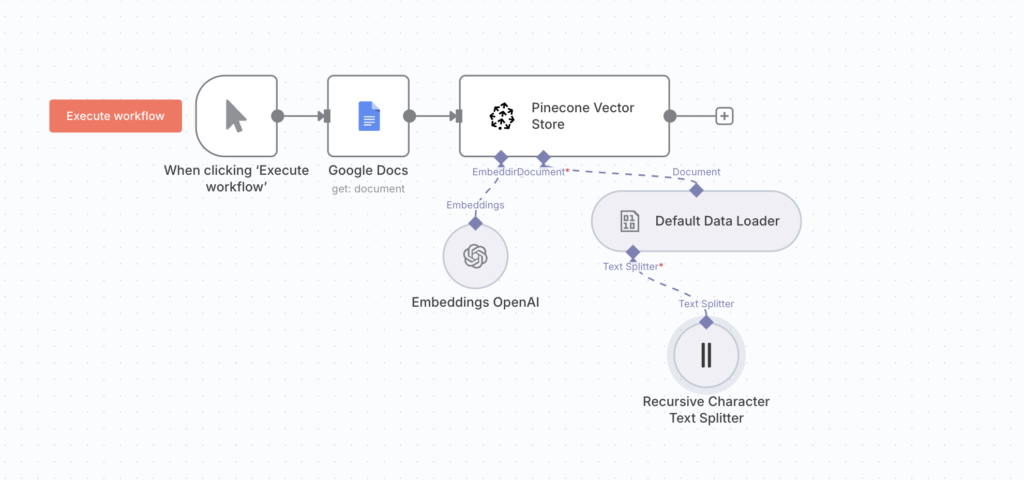
Why Combine Google Sheets, OpenAI, and n8n?
Each of these tools has a unique role.
Google Sheets
Google Sheets is simple but extremely powerful. It can act as a lightweight database for storing structured data.
Developers often use Google Sheets for:
• storing content ideas
• managing automation inputs
• tracking customer requests
• managing structured datasets
Because it is easy to edit and accessible from anywhere, it works perfectly as the data layer of an automation system.
OpenAI
OpenAI provides advanced AI models that can generate text, classify data, summarize information, and even write code.
In automation workflows, OpenAI can be used for:
• generating content
• analyzing customer messages
• classifying data
• summarizing information
• generating automated responses
By integrating OpenAI into a workflow, you can turn static data into intelligent automation.
n8n
n8n acts as the automation engine that connects everything together.
It allows you to:
• read data from Google Sheets
• send data to OpenAI
• process the results
• store or send output to other systems
Unlike simpler automation tools, n8n supports complex workflows, branching logic, and advanced data transformations.
Example Workflow Overview
Before building the system, let’s look at a simple example workflow.
Google Sheets contains a list of prompts.
n8n reads the prompts from the sheet.
n8n sends the prompt to OpenAI.
OpenAI generates a response.
n8n stores the AI result back in Google Sheets.
Workflow structure:
Google Sheets
↓
n8n Workflow Trigger
↓
OpenAI Processing
↓
Store Results Back in Sheet
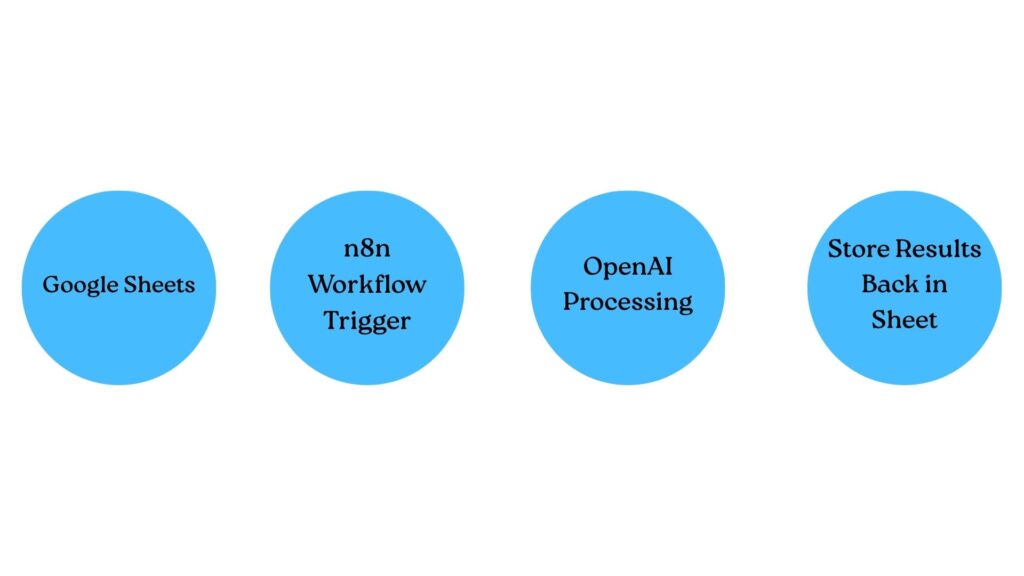
This system can be expanded to generate content, process user messages, or build AI-powered automation tools.
Step 1: Prepare Your Google Sheet
The first step is designing the spreadsheet structure.
Create a new Google Sheet and define columns like this:
| ID | Prompt | AI Response | Status |
|---|
Explanation of each column:
ID
Unique identifier for each row.
Prompt
The input text that will be sent to OpenAI.
AI Response
The output generated by OpenAI.
Status
Controls workflow processing.
Status values might include:
• pending
• processed
• error
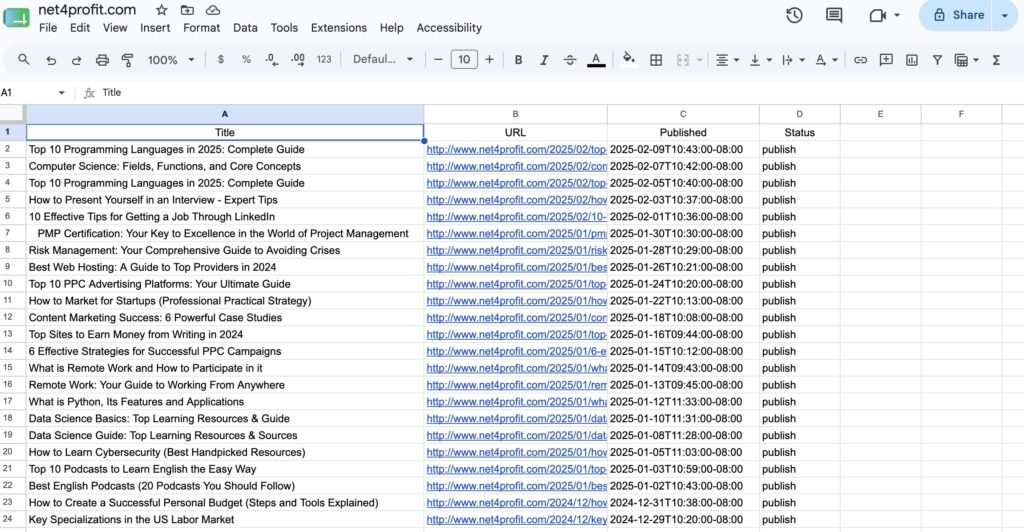
This spreadsheet will act as the input source for the automation workflow.
Step 2: Set Up n8n
To run the workflow, you need an active n8n instance.
You can run n8n in several ways:
• n8n Cloud
• Self-hosted VPS
• Docker container
• Local development environment
Many developers prefer self-hosting because it allows more control and lower costs.

Once n8n is running, create a new workflow.
Step 3: Add a Trigger Node
Every workflow needs a trigger.
For this automation system, we can use a Schedule Trigger.
This allows the workflow to run automatically at specific intervals.
Example configuration:
Run every 10 minutes.
This means n8n checks the spreadsheet for new prompts every 10 minutes.
You can also use a Webhook Trigger if you want to trigger the workflow manually from an external system.
Step 4: Read Data From Google Sheets
Next, add the Google Sheets Node.
Configure it to:
• authenticate your Google account
• select the spreadsheet
• read rows from the sheet
n8n will retrieve all rows in the sheet.
Each row becomes an item that can be processed by the workflow.
Step 5: Filter Pending Rows
You do not want to process rows that were already completed.
Add an IF Node to filter rows.
Condition:
Status = pending
If the condition is true, the workflow continues.
Otherwise, the row is ignored.
This ensures the workflow only processes new tasks.
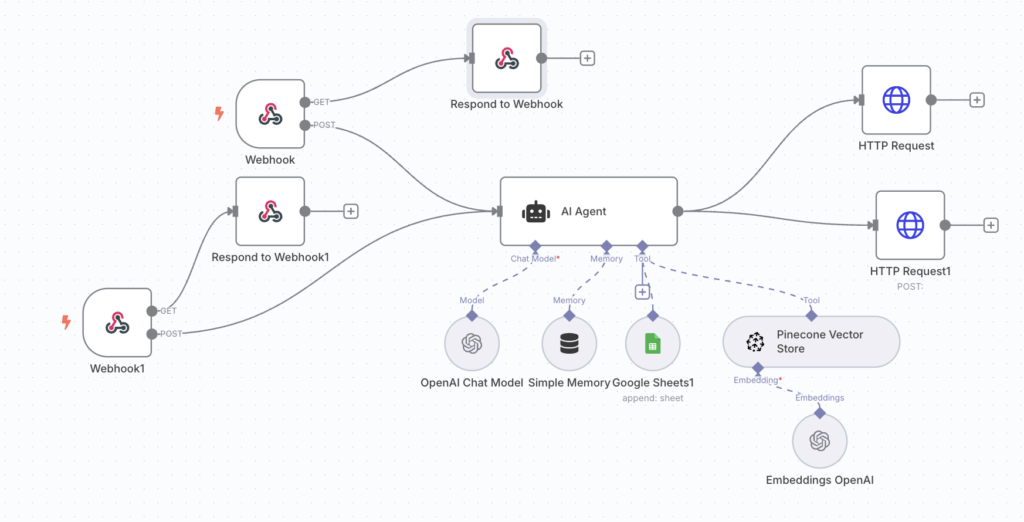
Step 6: Send the Prompt to OpenAI
Now we integrate AI.
Add the OpenAI Node inside n8n.
Configure it with:
• OpenAI API key
• model selection (e.g., GPT model)
• prompt input
Example prompt:
“Write a short explanation of this topic: {{Prompt}}”
The node sends the prompt from the spreadsheet to OpenAI and receives the generated response.
Step 7: Process the AI Response
Once OpenAI generates the output, n8n receives the response.
You can process the data using:
• Set Node
• Function Node
• Data Transformation Nodes
For example, you might extract:
AI response text
Then prepare it to be stored back in Google Sheets.
Step 8: Update the Google Sheet
Now the automation writes the result back into the spreadsheet.
Add another Google Sheets Node configured to update rows.
Update the following fields:
AI Response → OpenAI output
Status → processed
This prevents the workflow from reprocessing the same prompt again.
Your spreadsheet now becomes a structured AI output database.
Step 9: Add Error Handling
Automation systems must handle errors.
Possible problems include:
• OpenAI API errors
• authentication failures
• missing data
• network issues
Add error branches in the workflow.
For example:
If OpenAI fails → mark row as error.
This ensures the system continues running without breaking.
Example Full Workflow
The full workflow structure may look like this:
Schedule Trigger
↓
Google Sheets Read
↓
IF Node (Status = pending)
↓
OpenAI Node
↓
Process Output
↓
Update Google Sheets
↓
Log Result
Real Use Cases for This Automation
This type of workflow can power many real-world applications.
Examples include:
AI Content Generation
Google Sheets stores article ideas.
OpenAI generates outlines or drafts.
Customer Support Automation
Customer messages are stored in a spreadsheet.
OpenAI analyzes and generates responses.
Social Media Content Creation
Post ideas are stored in Google Sheets.
AI generates captions automatically.
Data Classification
Incoming data is categorized automatically using AI.
[MY REAL USE CASE: AUTOMATING HIGH-TICKET B2B CONTENT SYNDICATION] “I don’t just use this setup for small personal experiments; it is the core marketing engine for my private limited company, PPMD GROUP LTD. We utilize this exact pipeline to drive the content strategy and organic acquisition for our digital storefront, where we sell premium, production-grade n8n automation templates priced from $199 to $999.How It Works in Production: Our development ideas and structural hooks are dropped into a central Google Sheets database. The self-hosted n8n engine pulls rows marked as pending and feeds them into OpenAI with strict system prompts engineered to generate high-value, technical devlogs—specifically focusing on mobile app development concepts using Swift and Kotlin. Once the data cleanup nodes process the AI payload, the workflow automatically reformats and syndicates the content to Twitter/X, LinkedIn, and Telegram channels. This allows a solo developer to maintain a highly active, agency-scale marketing footprint that funnels corporate traffic to high-ticket assets completely on autopilot.”
Advantages of This Automation Stack
Combining Google Sheets, OpenAI, and n8n offers several benefits.
Simplicity
Google Sheets is easy to edit and accessible from anywhere.
Flexibility
n8n allows complex workflow logic and API connections.
Intelligence
OpenAI adds AI-powered decision making.
Scalability
This system can expand to include more automation tasks over time.
Tips for Improving the Workflow
Once the system is working, you can expand it further.
Possible improvements include:
• generating SEO content automatically
• adding translation workflows
• summarizing large documents
• building AI customer support bots
• generating marketing copy
Automation systems evolve over time.
Start simple and improve gradually.
Common Mistakes to Avoid
Many beginners make similar mistakes when building automation systems.
These include:
Ignoring error handling.
Not filtering processed rows.
Overloading the workflow with unnecessary steps.
Failing to monitor API usage.
Avoiding these problems early will make your system more stable.
Final Thoughts
Connecting Google Sheets, OpenAI, and n8n in one workflow creates a powerful automation system that combines structured data, artificial intelligence, and flexible workflow logic.
This stack allows developers and creators to build systems that automate complex tasks with minimal manual input.
Instead of performing repetitive work every day, you create a system that runs automatically and scales with your needs.
Automation is not just about saving time.
It is about building digital infrastructure that allows you to focus on creativity, strategy, and growth.
Start with a simple workflow, test it carefully, and expand it step by step.
Over time, these small automation systems can evolve into powerful tools that support your entire digital workflow.