
Turning a game idea into a live product on Google Play is one of the most rewarding experiences for any indie developer.
But most beginners misunderstand the journey.
They think it’s about writing code.
In reality, it’s about building a system — from idea validation to architecture, testing, store optimization, and submission.
In this complete guide, I’ll walk you through the entire process from a Unity game idea to publishing on Google Play.
Whether this is your first game or your tenth, having a clear workflow saves time, reduces mistakes, and increases your chances of success.
Step 1: Validating Your Game Idea
Before opening Unity, validate your idea.
Ask:
- Is this concept simple enough for mobile?
- Does it fit short play sessions?
- Can it scale with levels or challenges?
- Does it have monetization potential?
Many indie developers build games they personally like — not games mobile users want.
Quick Validation Checklist
✔ Can you explain the game in one sentence?
✔ Is the mechanic clear within 10 seconds?
✔ Are similar games performing well in the store?
Research competitors:
- Look at top charts
- Analyze reviews
- Identify weaknesses
Your goal is not to copy — but to improve.
Step 2: Planning the Core Gameplay
Do not start coding randomly.
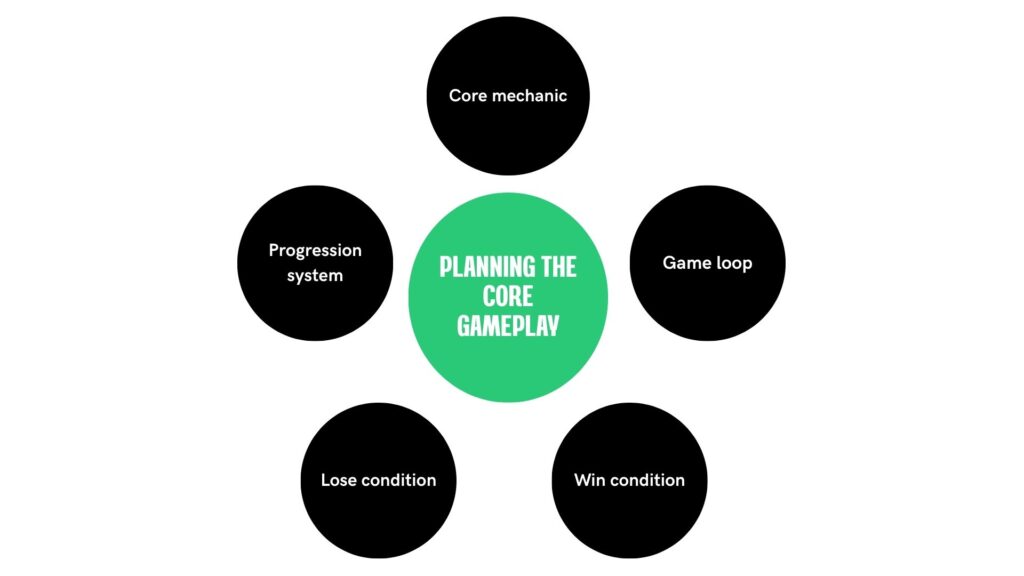
Define:
- Core mechanic
- Game loop
- Win condition
- Lose condition
- Progression system
Example game loop:
Start Level
⬇
Player Action
⬇
Reward or Failure
⬇
Restart / Next Level
Write it clearly before touching Unity.
Step 3: Setting Up Your Unity Project
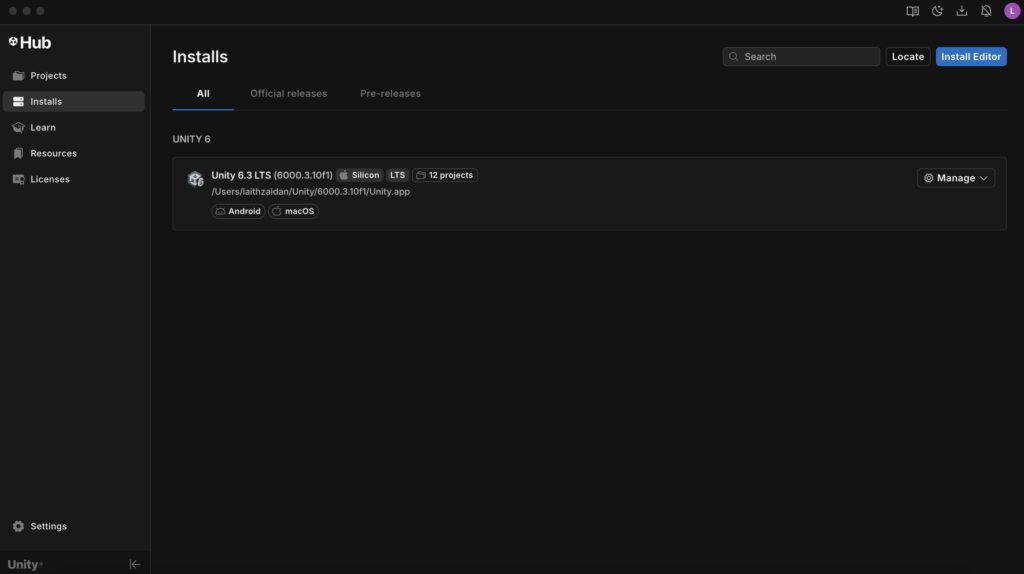
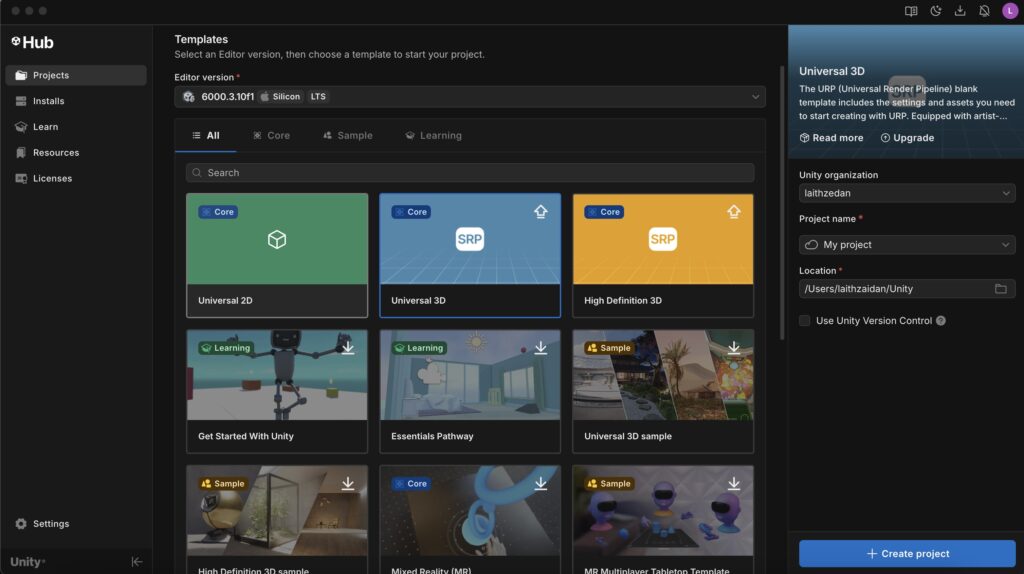
Open Unity Hub → Create new project.
Choose:
- 2D or 3D template
- Android target platform
Immediately configure:
Project Settings → Player → Company Name
Project Settings → Player → Package Name
Your package name is permanent once published.
Example:
com.yourname.gamename
Step 4: Building the Core Prototype
Focus only on:
- Core mechanic
- Basic UI
- Basic controls
No polishing.
No advanced graphics.
No animations.
If the core gameplay is not fun in prototype form, it won’t magically become fun later.
Step 5: Structuring the Project Properly
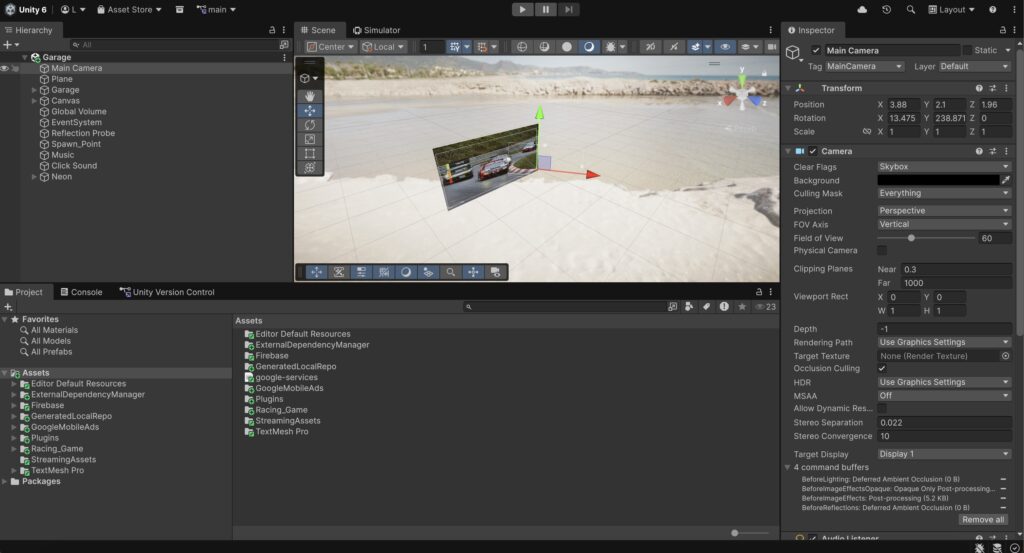
Before scaling, structure your project cleanly.
Recommended folder structure:
Assets/
Scripts/
Core/
Gameplay/
UI/
Systems/
Art/
Audio/
Prefabs/
Scenes/
Avoid dumping everything into one folder.
Scalability starts early.
Step 6: Adding Essential Systems
Once gameplay works, integrate:
- Save system
- Game state manager
- Audio system
- UI system
Keep them modular.
Avoid giant GameManager scripts.
Step 7: Performance Optimization
Before adding polish:
Test performance.
Use:
Window → Analysis → Profiler
Check:
- FPS
- Memory usage
- Draw calls
Optimize:
- Object pooling
- Texture compression
- Reduce unnecessary Update() calls
- Remove unused assets
Mobile players uninstall slow games instantly.
Step 8: Integrating Monetization (If Free Game)
Decide early:
- Ads?
- In-App Purchases?
- Both?
For AdMob:
- Create Ad Unit
- Integrate SDK
- Test in development mode
Place ads strategically:
- Between levels
- After failure
- Rewarded ads for bonuses
Never spam ads randomly.
Step 9: Testing on Real Devices
Unity Editor ≠ Real Phone
Test on:
- Low-end Android
- Mid-range device
- Different screen ratios
Check:
- Touch accuracy
- Loading times
- UI scaling
- Crash behavior
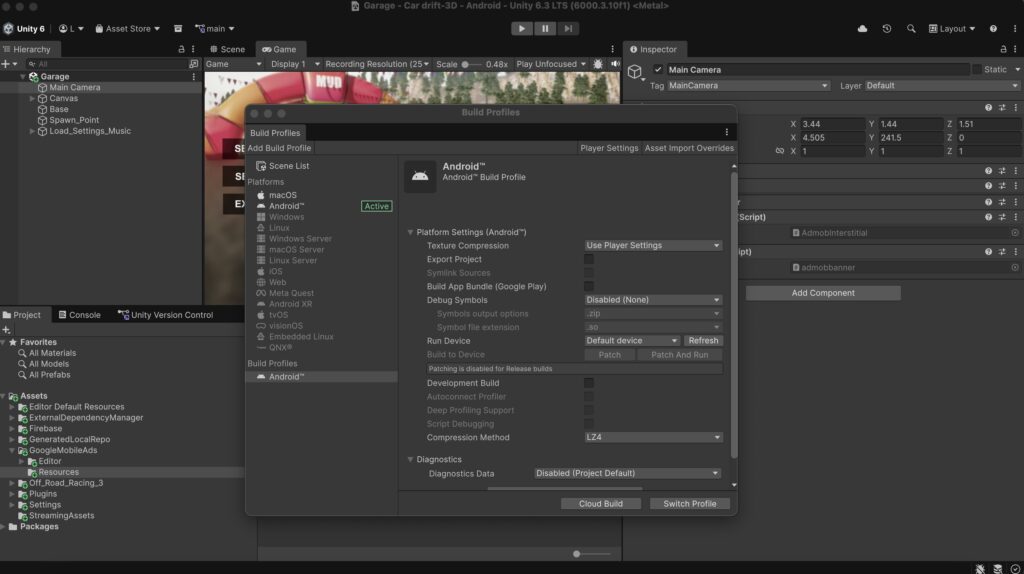
Step 10: Preparing for Build
In Unity:
File → Build Settings → Android → Switch Platform
Then:
- Enable IL2CPP
- Target ARM64
- Build App Bundle (.aab)
Google Play requires .aab format.
Set:
- Version Name (1.0)
- Version Code (1)
Every update must increase version code.
Step 11: Creating Google Play Developer Account
If you don’t have one:
Register at play.google.com/console
One-time fee: $25.
Use a professional email.
Step 12: Creating a New App in Play Console
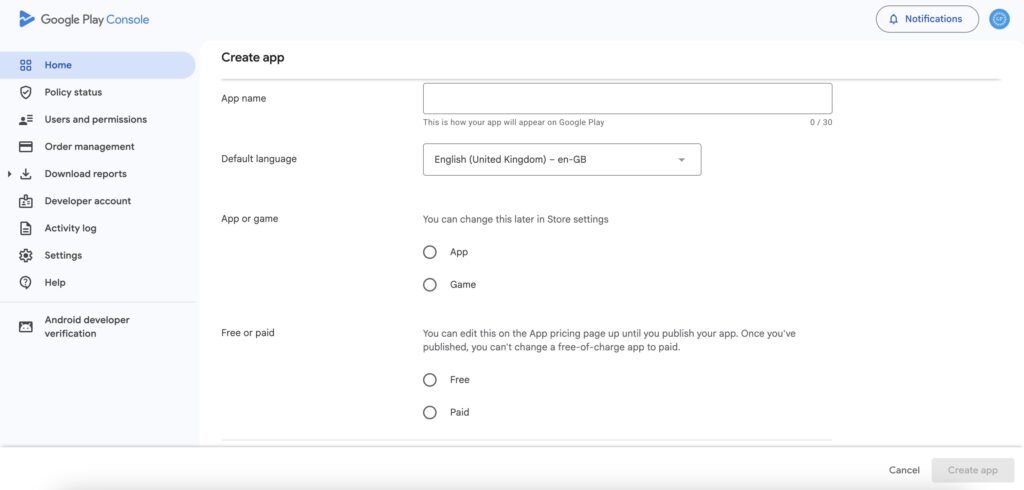
Inside Play Console:
Create App → Fill:
- App Name
- Language
- Game or App
- Free or Paid
Choose Free unless you plan paid downloads.
Step 13: Uploading Your Unity Build
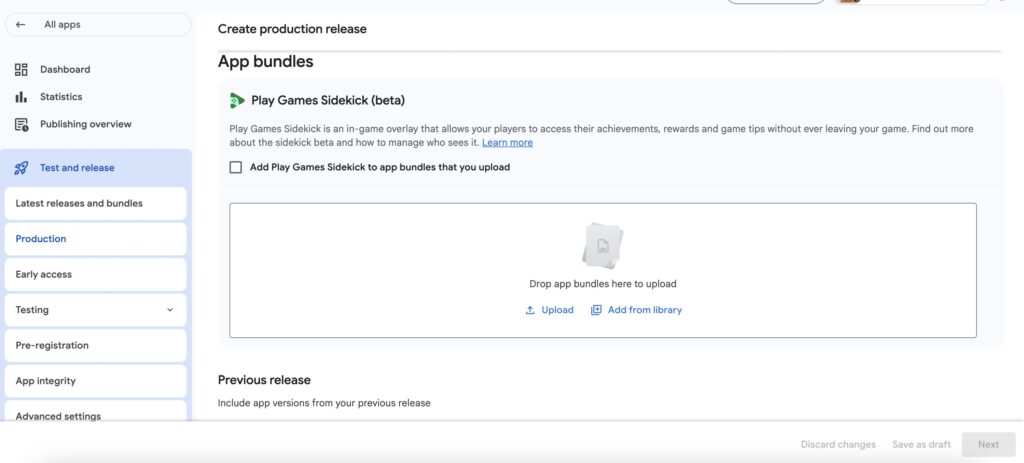
Go to:
Production → Create new release
Upload your .aab file.
Google will process:
- Device compatibility
- Warnings
- Size analysis
Fix any errors before proceeding.
Step 14: Completing Store Listing
This step is critical.
You must provide:
- App icon (512×512)
- Feature graphic (1024×500)
- Screenshots
- Short description
- Full description
- Privacy policy URL
Writing Effective Description
Structure:
Hook paragraph
Features list
Call-to-action
Example structure:
Challenge your reflexes in this fast-paced arcade experience…
Use bullet points.
Focus on benefits.
Step 15: Content Rating & Data Safety
Fill:
- Content rating questionnaire
- Target audience
- Ads declaration
- Data safety form
Be accurate.
Wrong data can cause suspension.
Step 16: Internal Testing Track
Before public release:
Create Internal Testing.
Upload build → Add testers → Install from Play Store.
Check:
- Ads display correctly
- No crashes
- Store listing appears properly
MY TESTING TRAGEDY: WHEN ADMOB FAILED
“The biggest shock I faced was after publishing one of my games: AdMob ads were not showing at all! I had tested the game on an emulator, and everything seemed fine. I skipped testing on multiple real devices, thinking it wasn’t necessary.
The Outcome: I lost thousands of potential ad impressions during the critical launch days because of a tiny integration error that only appeared on real hardware.
The Lesson: Never trust the Unity Editor or emulators. Ads, sensors, and battery performance can only be truly verified on a physical phone. Testing is not a ‘final step’; it’s a lifeline.
Step 17: Submitting for Review
After completing everything:
Click “Send for Review”.
Review time:
Usually 1–3 days.
Sometimes longer for new accounts.
Step 18: After Publishing
Publishing is not the end.
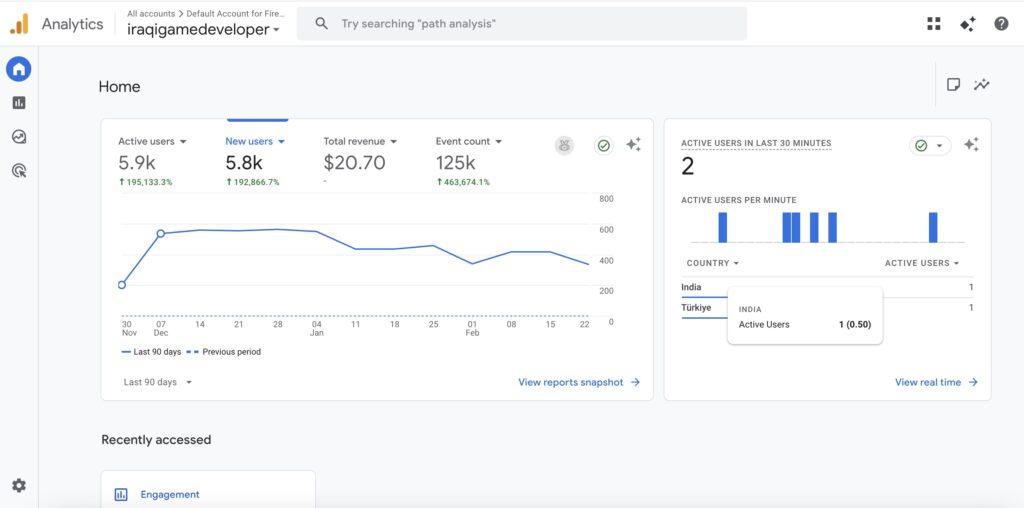
Now monitor:
- Crash reports
- Retention
- Install rate
- Revenue
Update regularly.
Google favors active apps.
Common Mistakes to Avoid
- Publishing without testing
- Ignoring store optimization
- No privacy policy
- Hardcoding package name incorrectly
- Uploading APK instead of AAB
- Skipping analytics
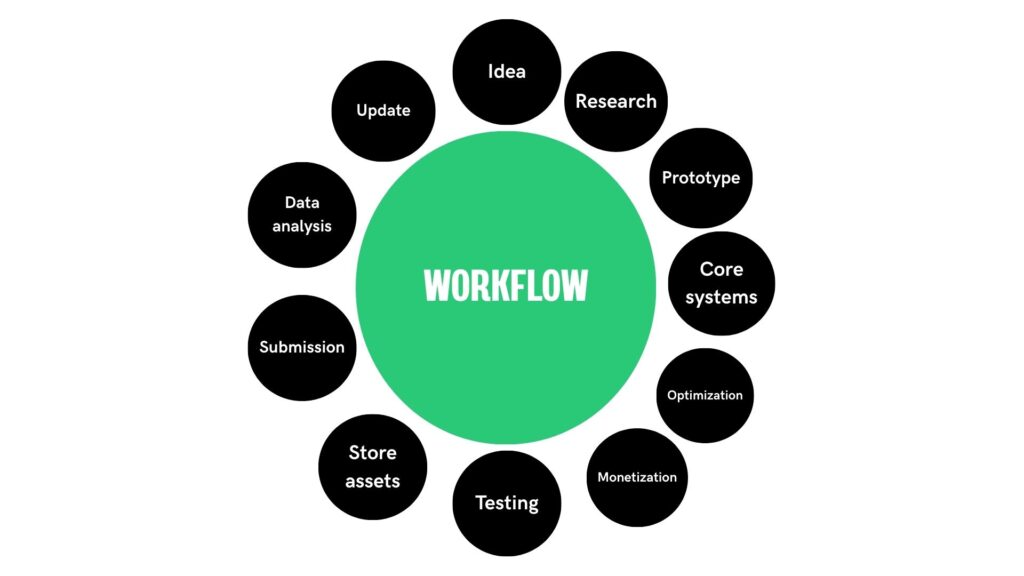
My Personal Workflow Summary
Idea
⬇
Research
⬇
Prototype
⬇
Core systems
⬇
Optimization
⬇
Monetization
⬇
Testing
⬇
Store assets
⬇
Submission
⬇
Data analysis
⬇
Update
Final Thoughts
Turning a Unity idea into a published Google Play game is not complicated — but it requires discipline.
The real difference between hobby developers and serious indie developers is not skill.
It’s process.
If you follow a structured workflow:
- You reduce stress
- You publish faster
- You learn more
- You improve consistently
Your first game might not make money.
But it will teach you everything you need for the next one.
Build.
Structure.
Test.
Optimize.
Publish.
Improve.
That’s the real system.